PeopleGrove Mobile Experience
A capstone UX project improving how WGU students find their capstone and other learning opportunities on PeopleGrove, through user research and low-fidelity mobile wireframes.
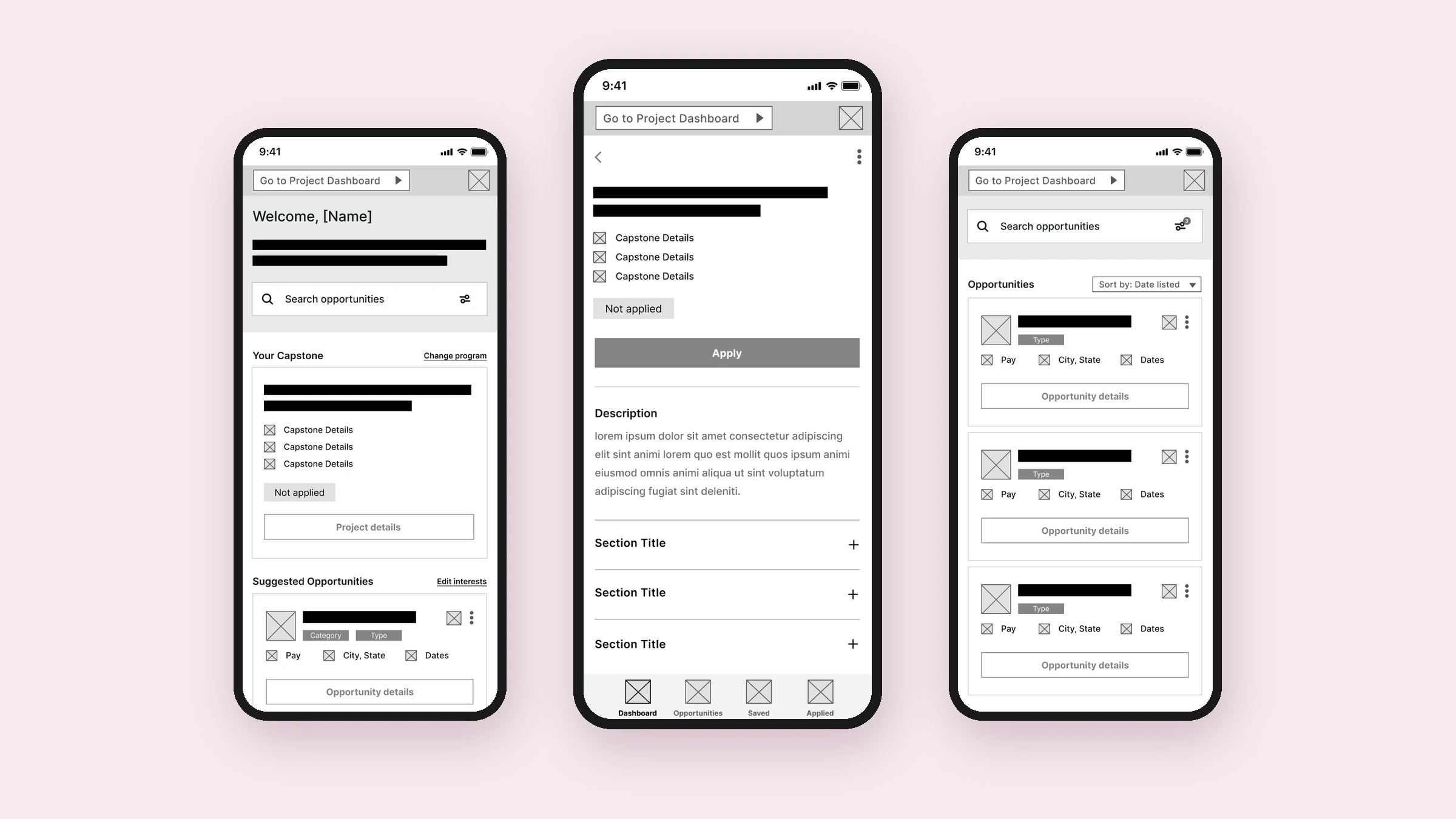
Improving the mobile experience.
PeopleGrove is an experiential learning platform where WGU students find their required capstone project, internships, and other opportunities. For my B.S. User Experience Design capstone, I researched how students use the platform and redesigned the key mobile flows around finding a capstone and applying to opportunities.
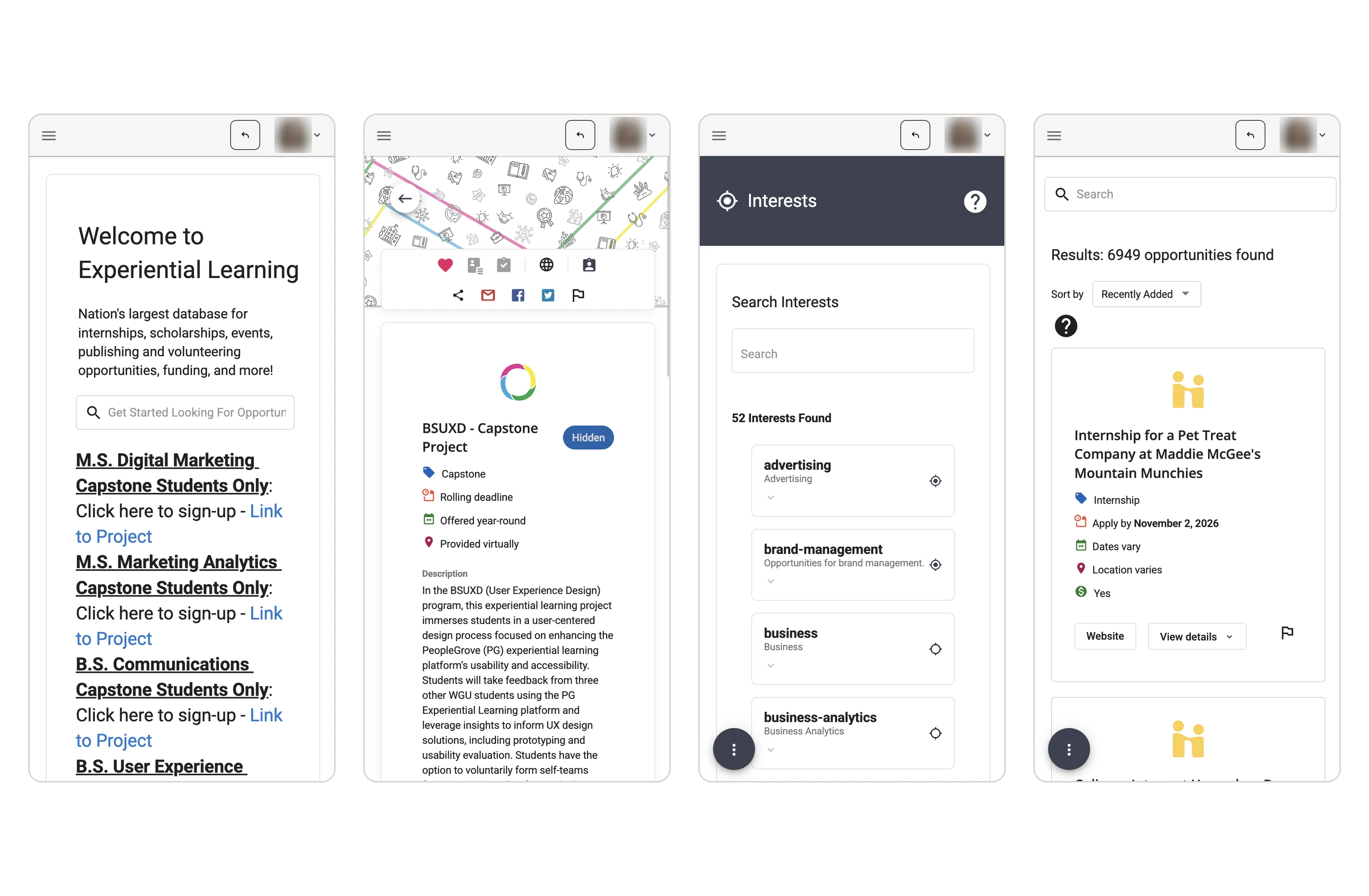
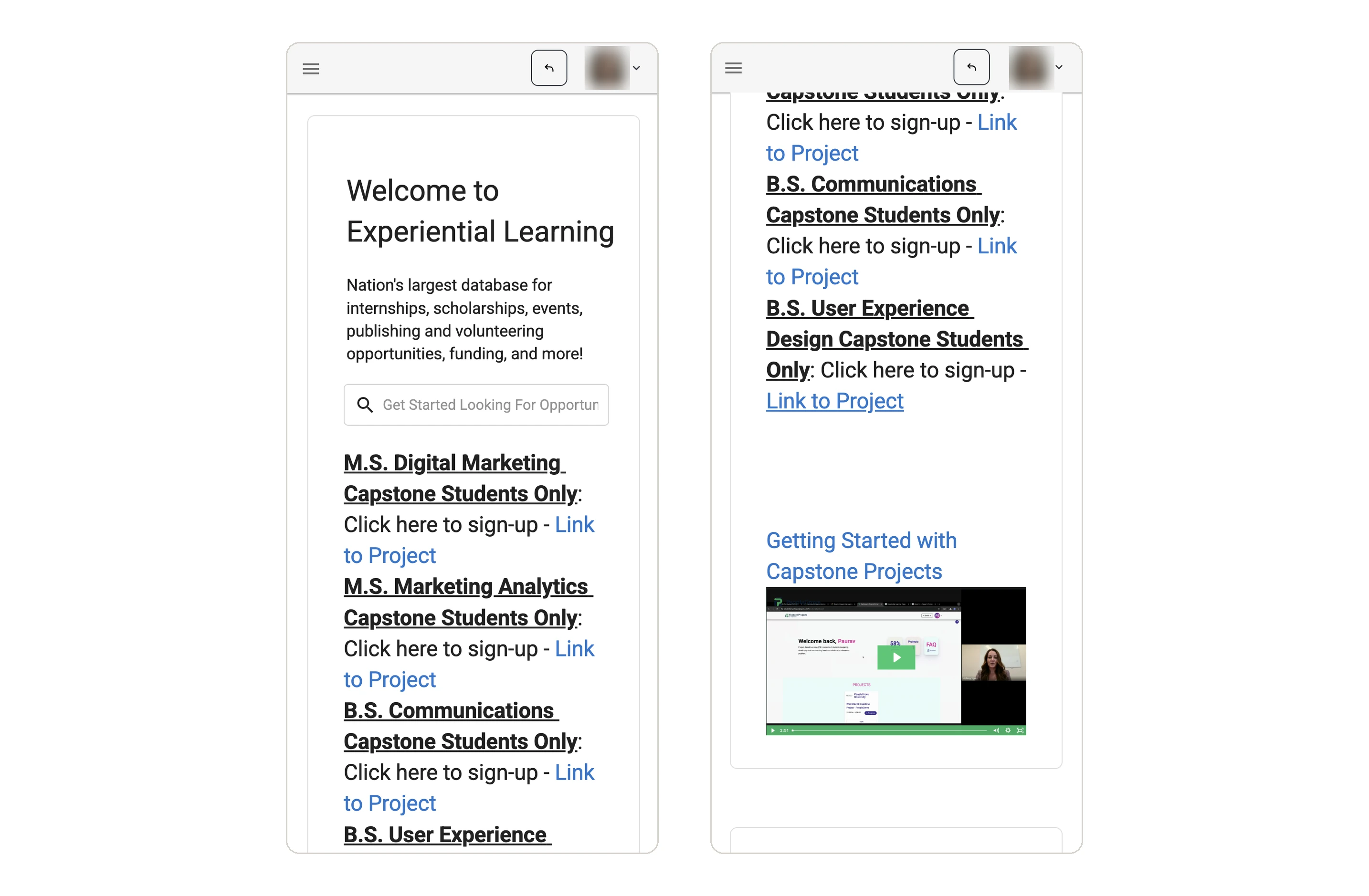
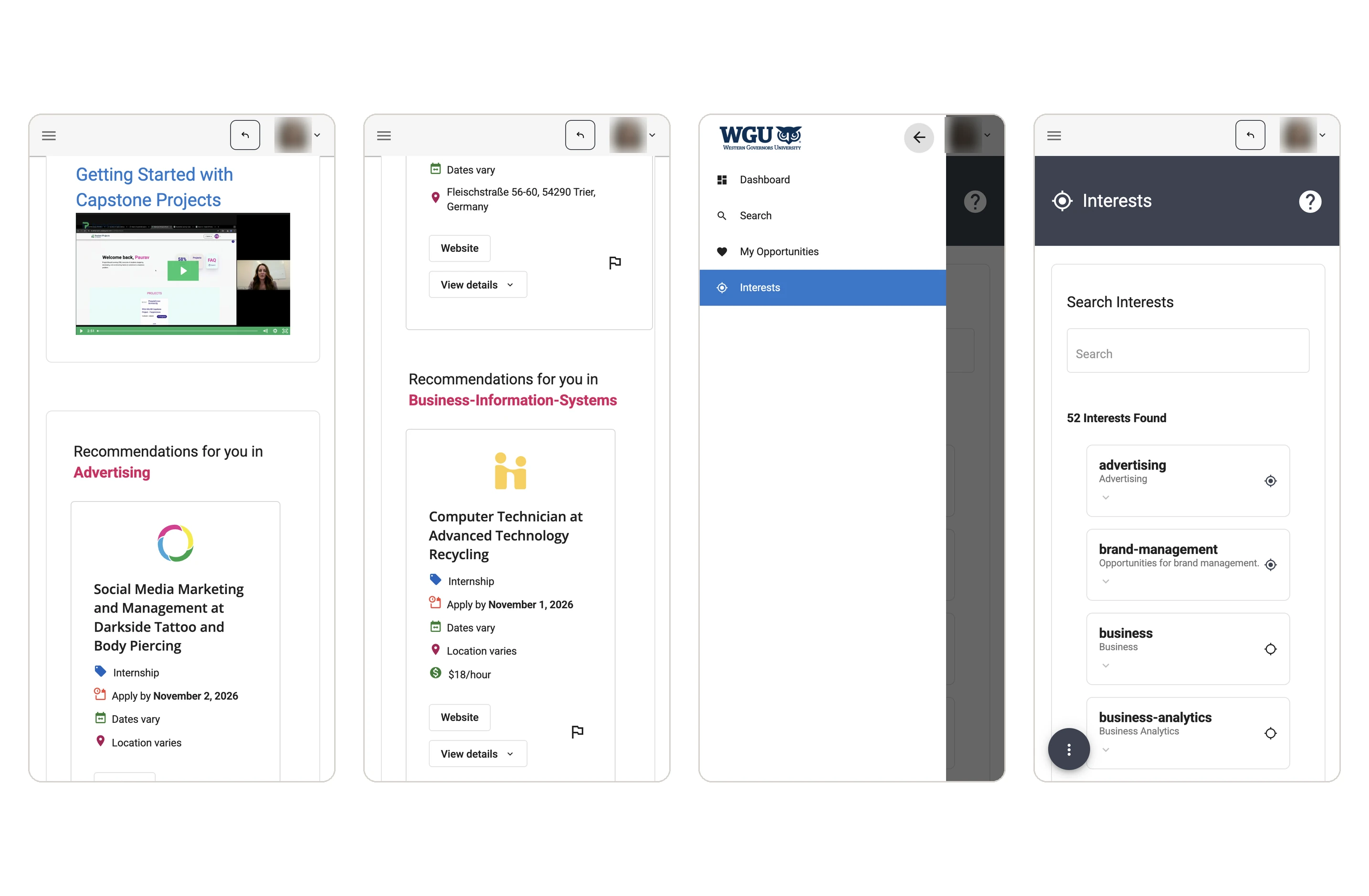
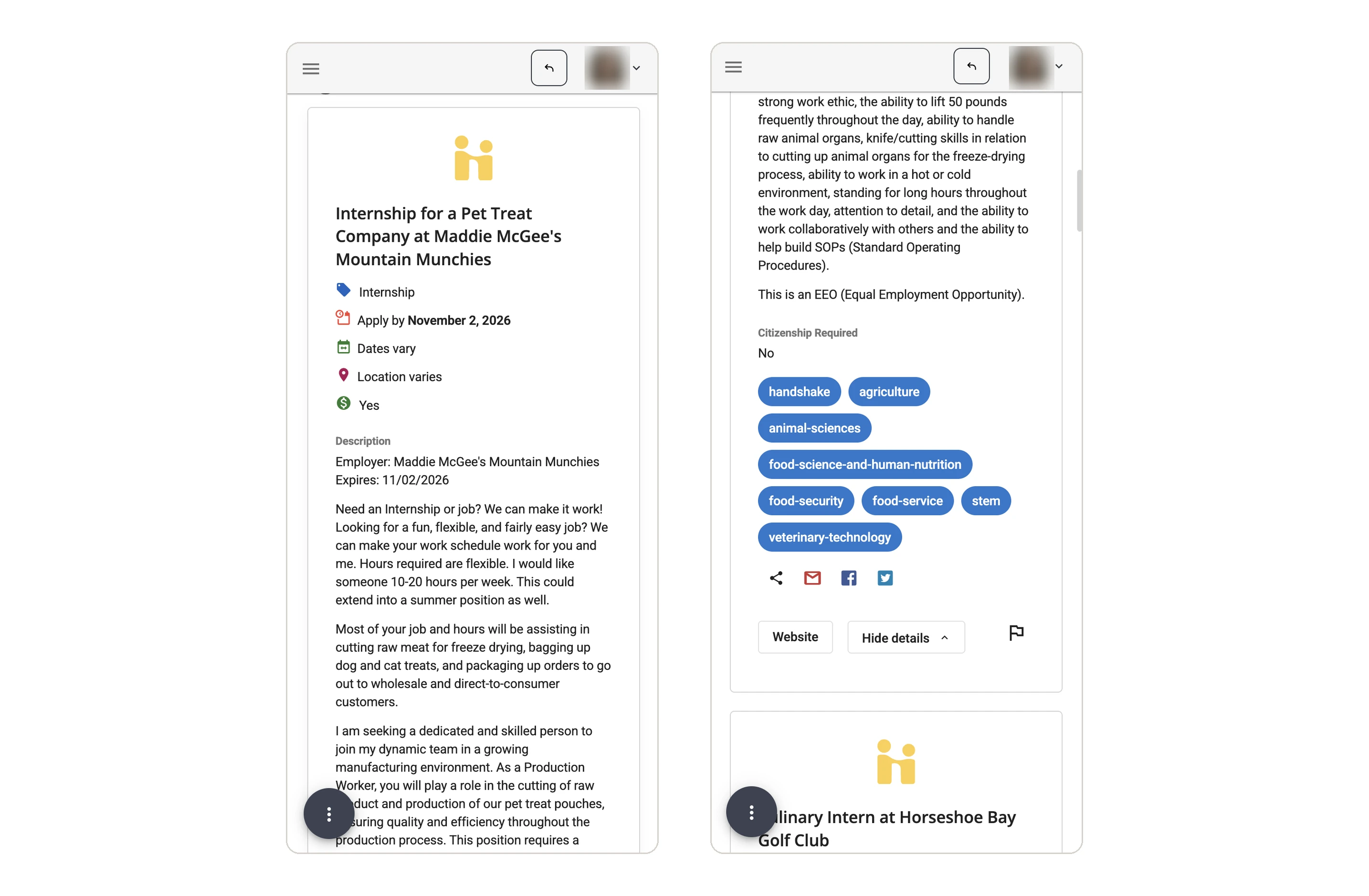
The original mobile experience.
The dashboard, recommendations, and search showed every student the same long lists, so each person had to work out what applied to them.
Key actions like applying were missing or hidden behind unlabeled icons, and the main sections lived in a hamburger menu. Other tasks took multiple steps to personalize the experience.
Survey participants and questions.
I surveyed current WGU students about their thoughts on the platform and learned what they were trying to accomplish, how they felt, where they got unsure of what to do next, and what they would change or keep. The survey had 9 open-ended questions. The 4 key questions are below.
Participants
Age range
Current WGU students
Used the platform on mobile
Think about your most recent visit. What were you trying to accomplish? Briefly describe the steps you took and whether you succeeded.
What was your first impression when you landed on the dashboard? Why?
Was there any point where you felt unsure what to do next? If so, describe what happened and what you did.
What, if anything, would you change about the platform, and why?
Key survey findings.
Students described uncertainty about what the platform offered and how to begin or continue their tasks.
Showing capstone options for multiple degree programs made it harder to understand which project applied to the student.
One student struggled to locate "Switch To," expected a project tile to be clickable, and had to scroll to find their capstone card.
Opportunity listings were confusing and text heavy, and the dashboard as a whole didn't make the next step clear.
Students also identified the dashboard as readable and high contrast.
Understanding Users.
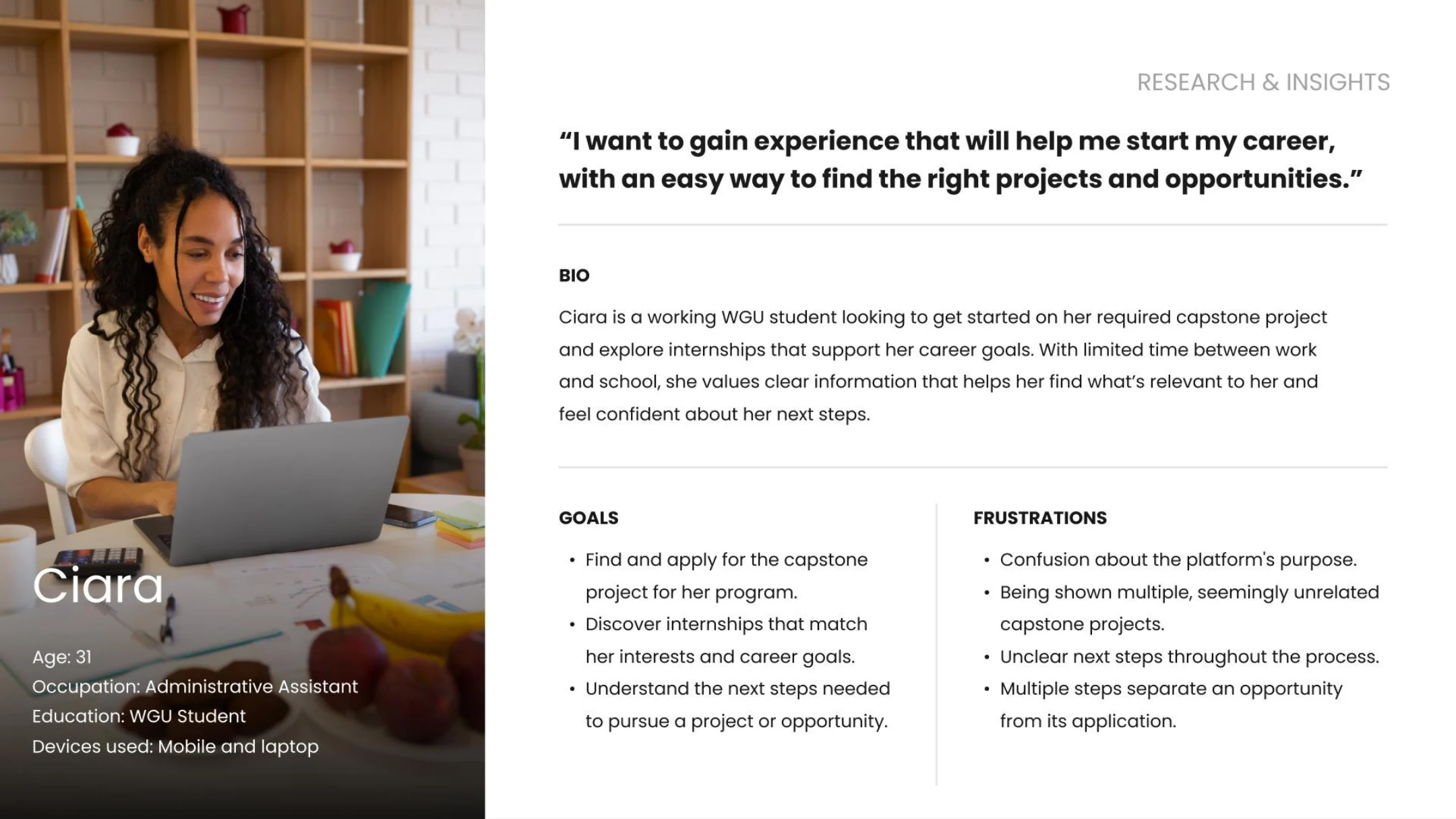
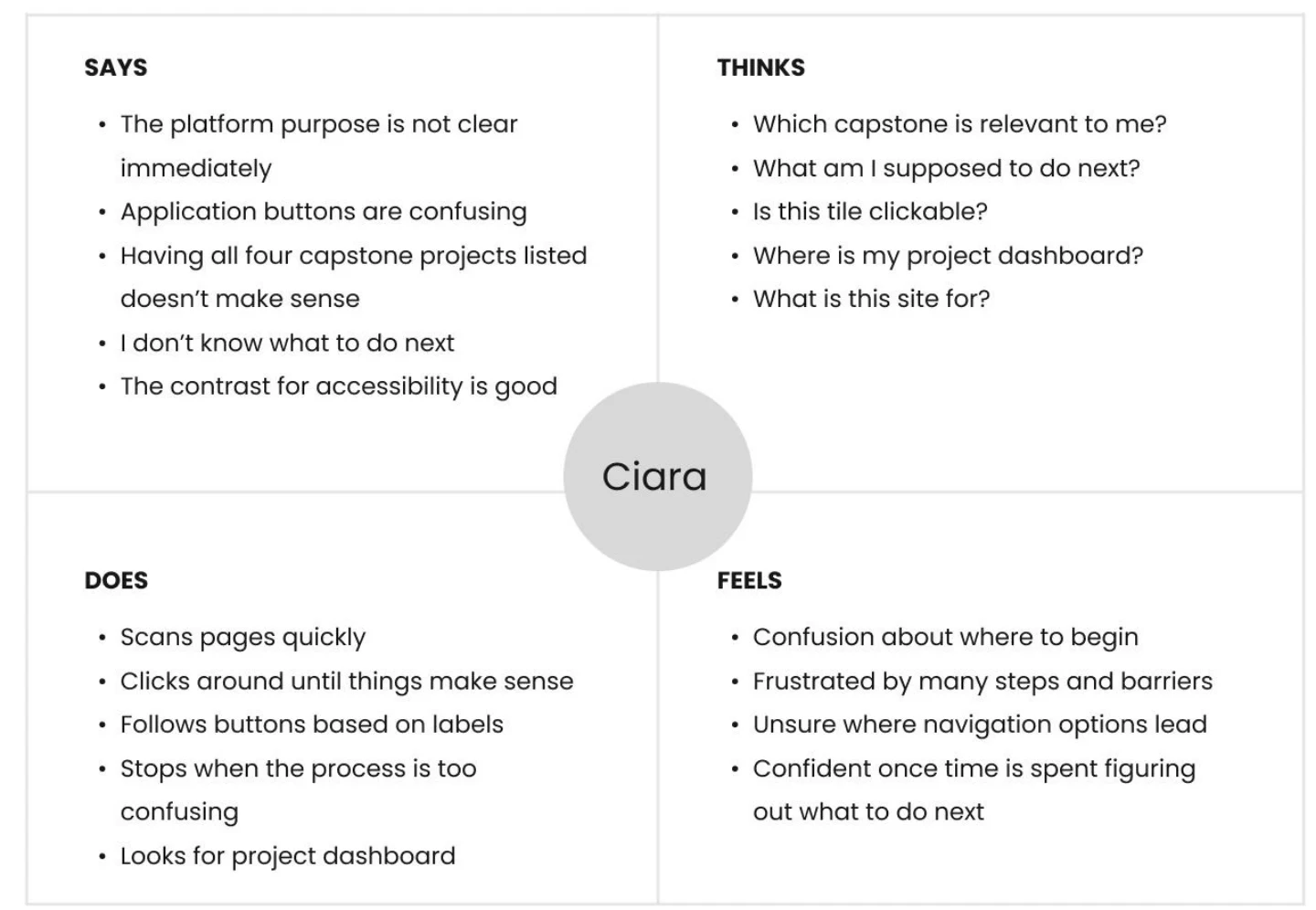
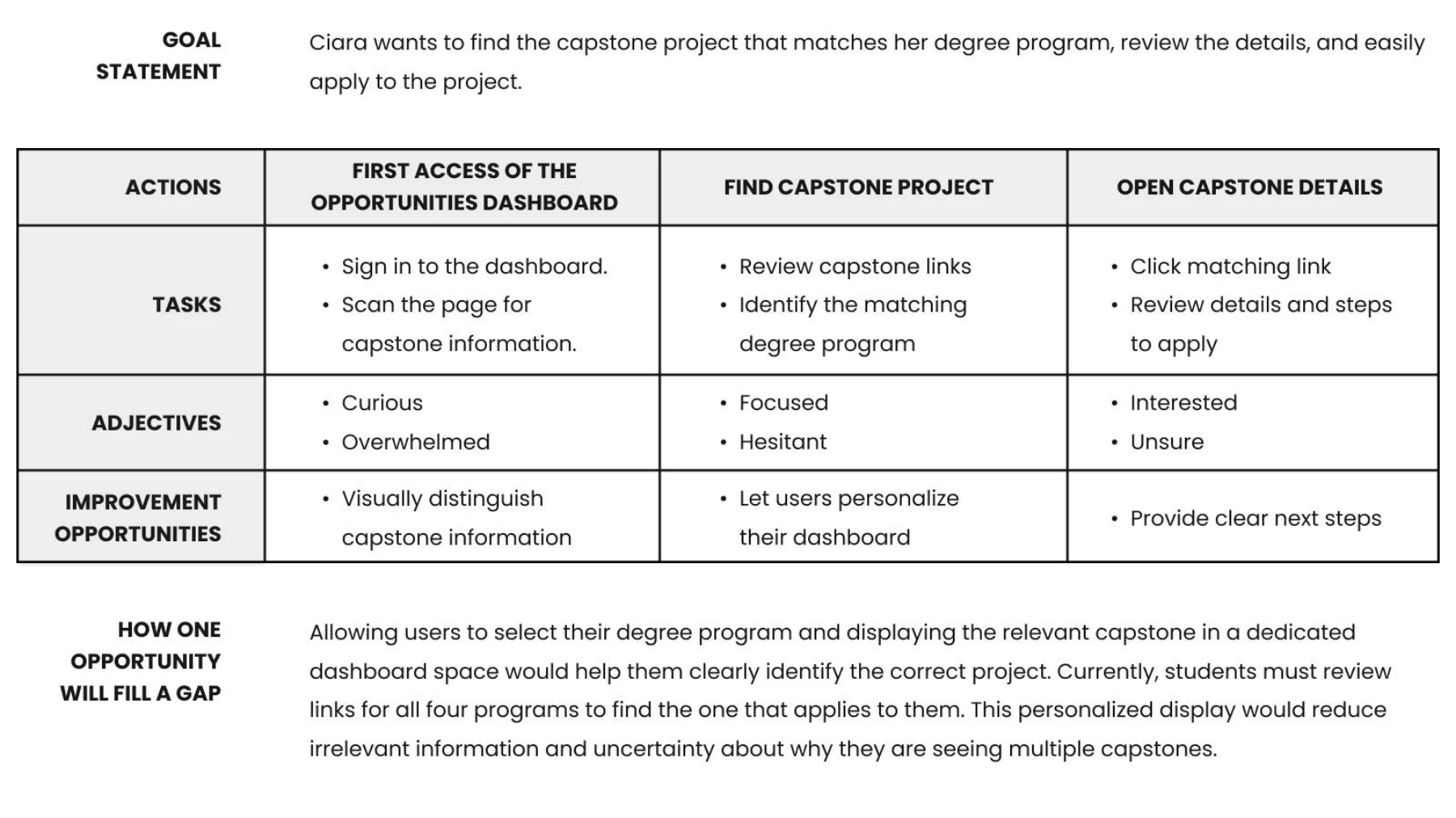
I turned the survey findings into a persona, an empathy map, and a journey map. Ciara is a working WGU student with limited time, and the journey map showed where her confidence drops: choosing the right capstone from four programs, and knowing what to do next.
Simplify and personalize.
Students had to review links for all four programs to find the one that applied to them. Letting them select their degree program and showing the relevant capstone in a dedicated dashboard space reduces irrelevant information and uncertainty about why they see multiple capstones. The same idea, showing students only what is relevant with a clear next step, guided the opportunities redesign.
Finding your capstone.
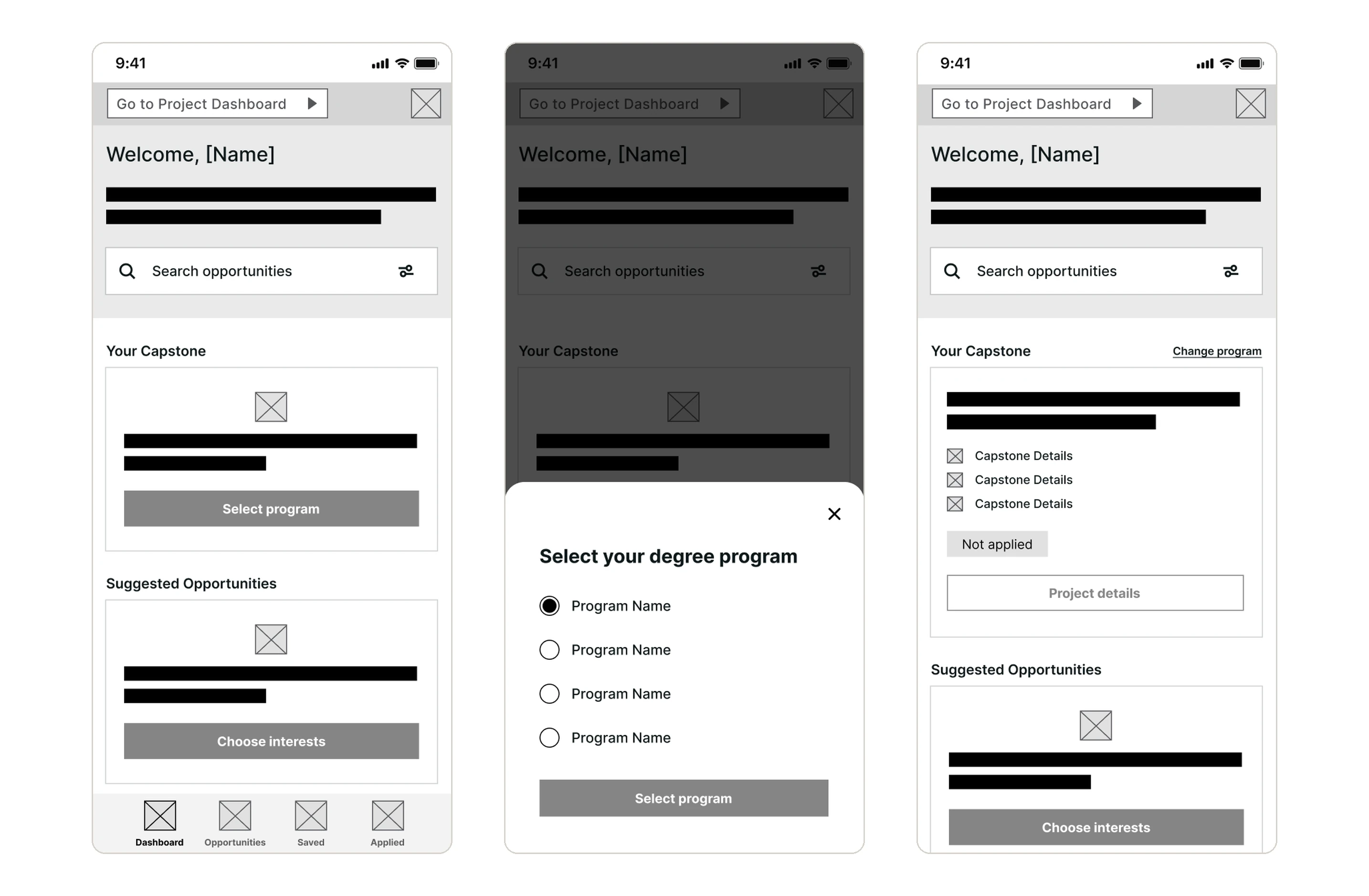
A new "Your Capstone" section lets users select their program. The dashboard then displays their capstone, with a "Change program" link in case they selected the wrong one.
The top navigation button was relabeled from "Switch To," which students identified as unclear, to "Go to Project Dashboard."
Rather than hiding other programs, the dashboard shows the student's capstone first and keeps the rest one tap away through "Change program." Wrongly hiding the right capstone costs more than ranking it lower, especially if the platform's enrollment data isn't always accurate.
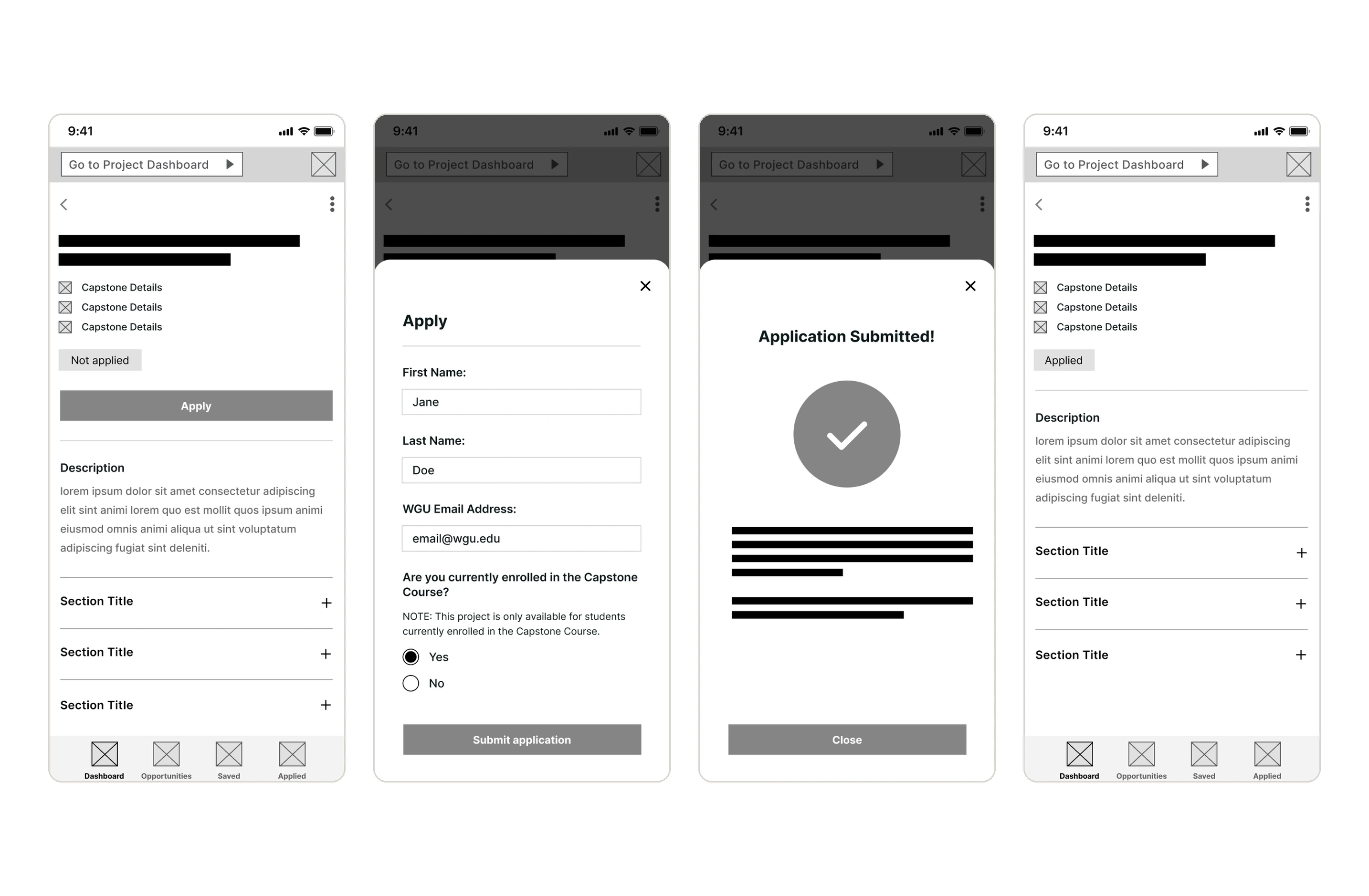
Capstone details and applying.
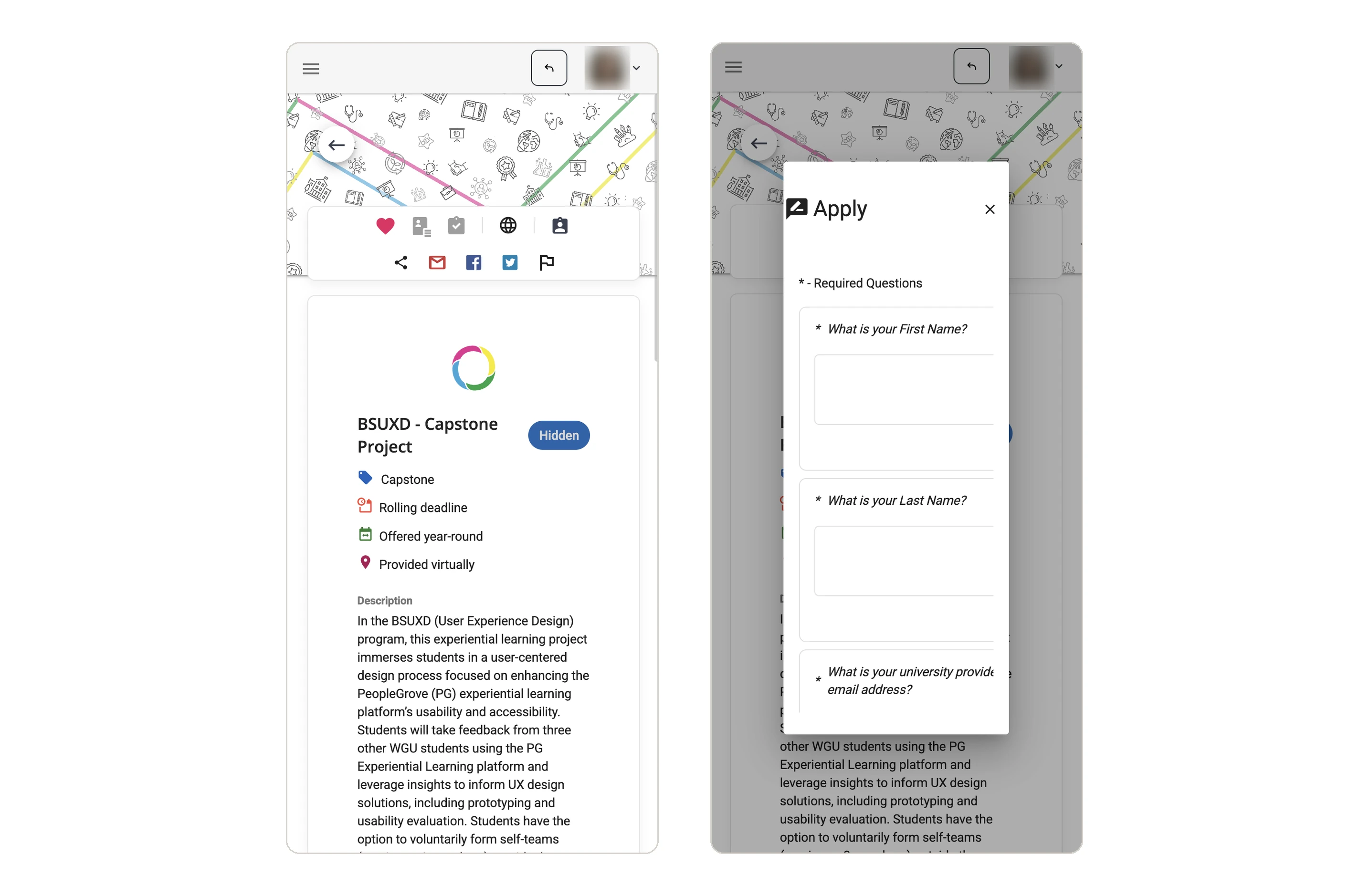
Information and application status are grouped near a large "Apply" button, with other details in expandable sections. The application opens in a panel with short, clearly labeled fields.
A confirmation message reassures students their application was submitted, explains the review timeframe, and outlines next steps. Status then updates from "Not applied" to "Applied."
Suggested opportunities and interests.
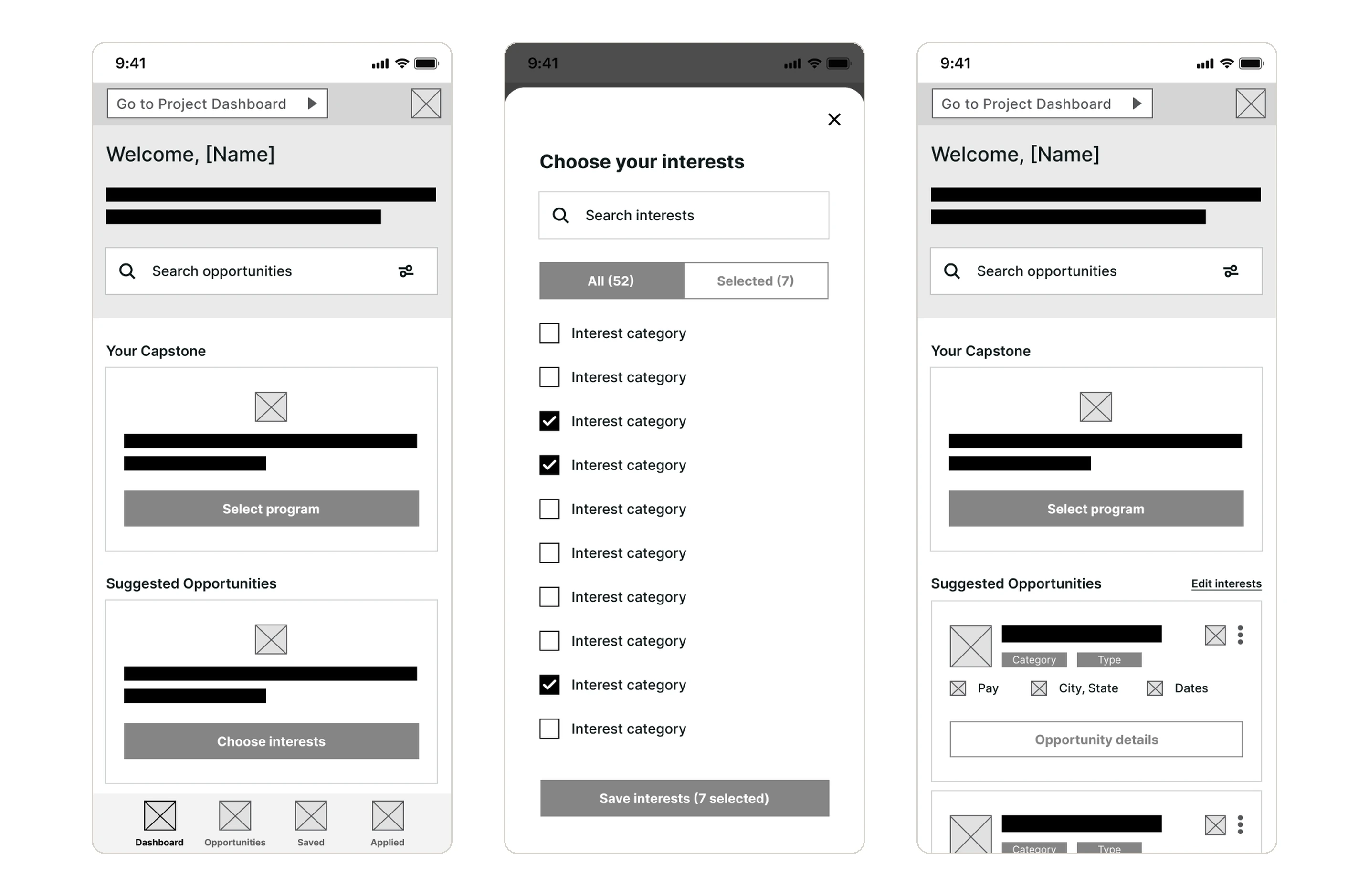
Users previously had to visit a separate "Interests" page before recommendations appeared. "Choose interests" now lives in the dashboard, and choices can be updated anytime through "Edit interests."
"Suggested Opportunities" combines recommendations into one section with category tags. Compact cards show key details, and "View all opportunities" leads to the full list.
Search and filters.
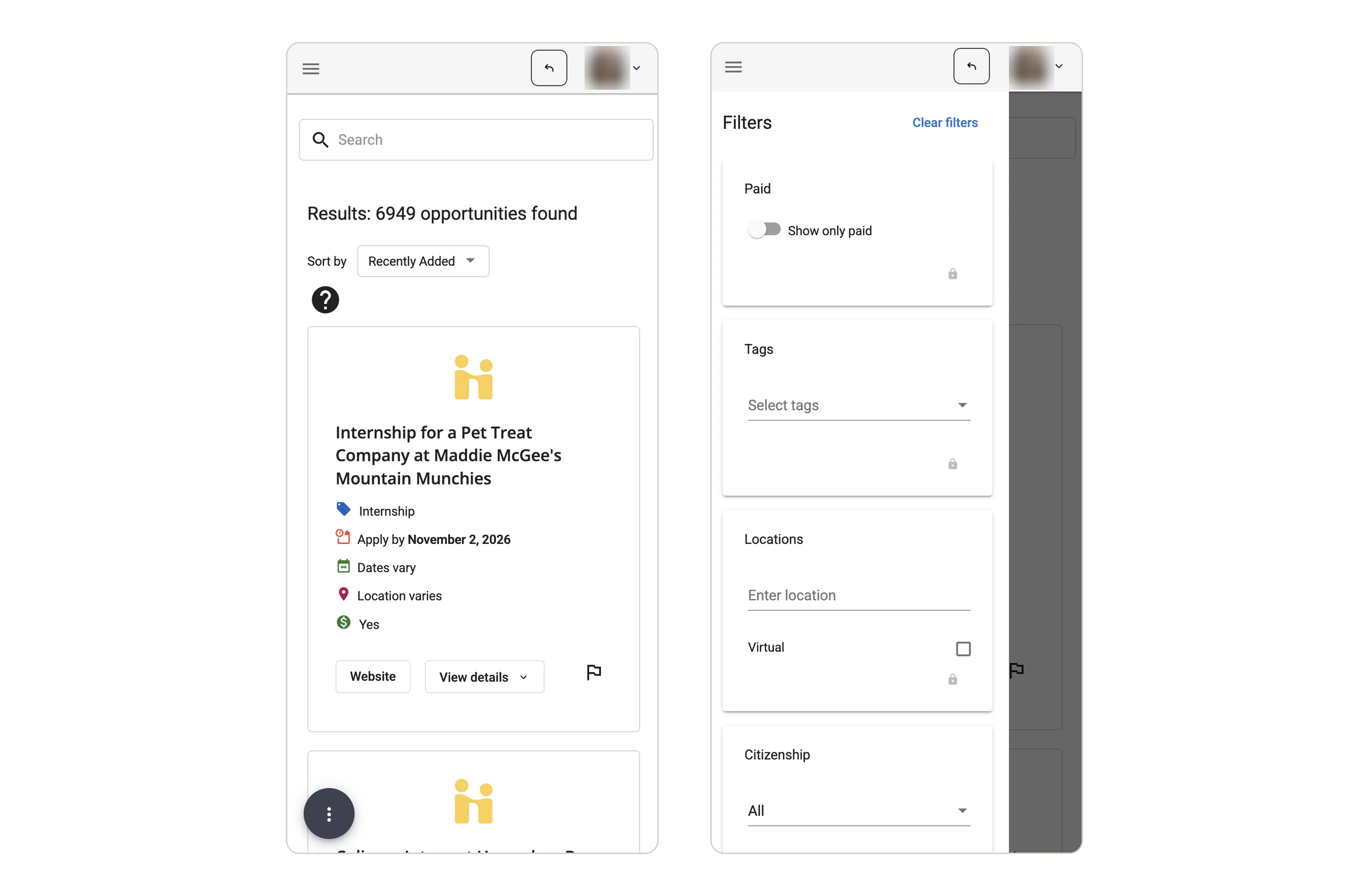
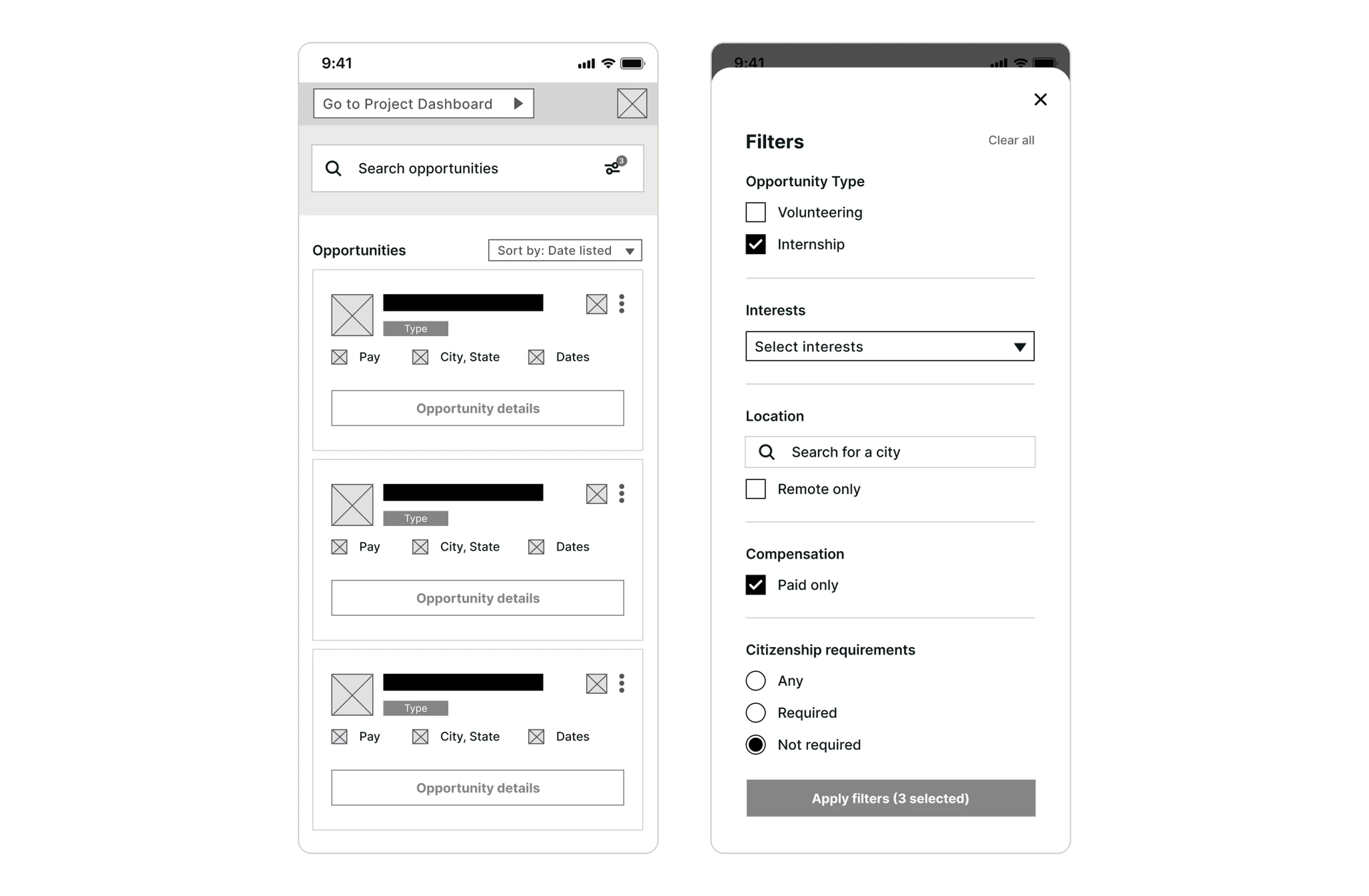
Cards use a consistent layout for type, pay, location, and dates to support quick comparison. An "Opportunity details" button clarifies the next action, while secondary actions are grouped in a menu.
A dedicated filter panel groups options by type, interests, location, compensation, and citizenship requirements. Users can make multiple selections, reset with "Clear all," and see the active filter count.
Opportunity details and actions.
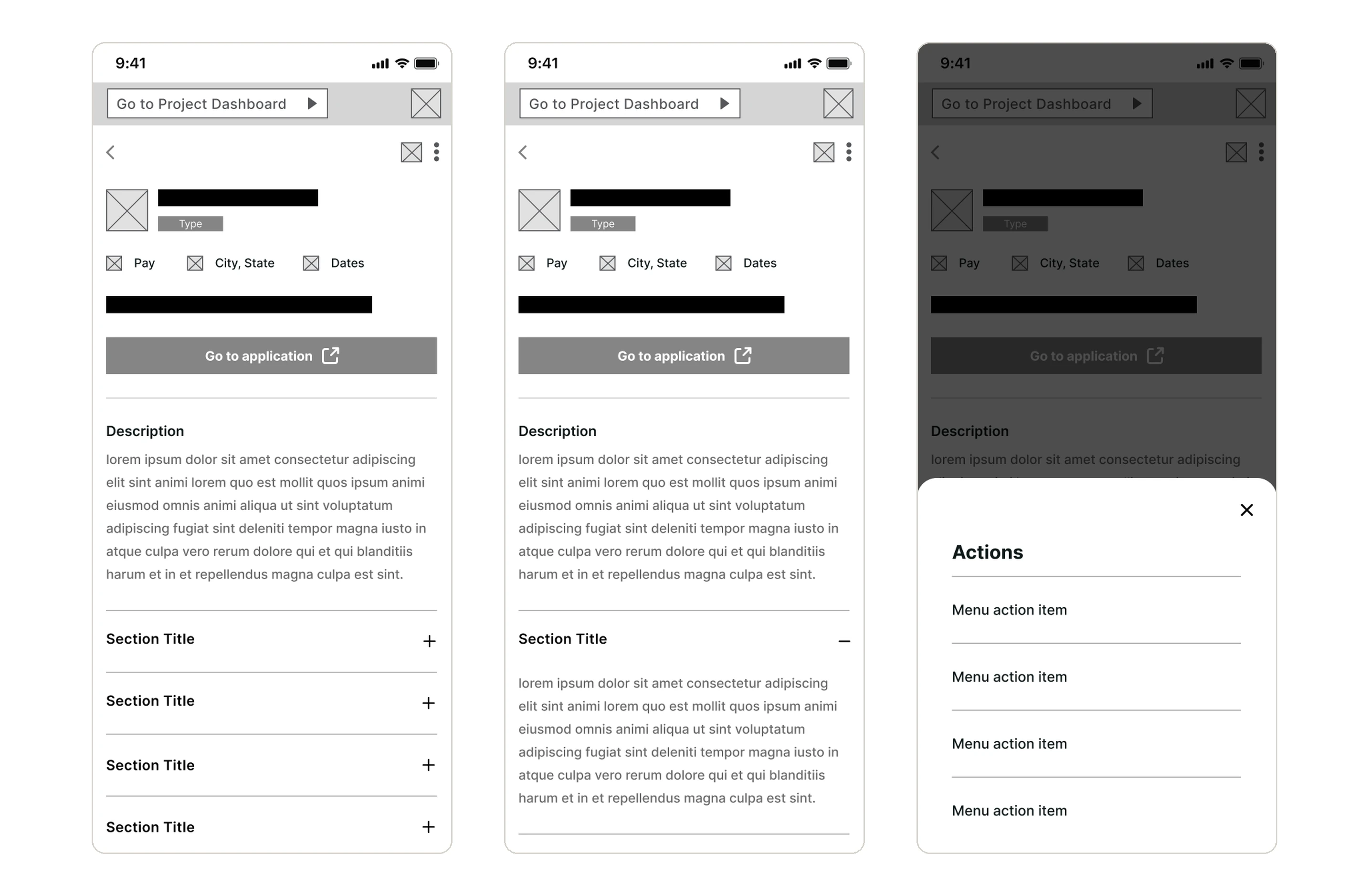
Key details stay prominent at the top. A large "Go to application" button makes the next step clear, and an external link icon shows when the application opens outside the platform.
The main description stays visible, while additional information is organized into expandable sections.
Actions are grouped in a separate menu, keeping the page focused on the details.
Designed to be clear for everyone.
Buttons say exactly what they do, so the destination is clear.
Status is always paired with a text label, like "Applied" or "Not applied."
Every card uses the same layout and every screen places primary actions in the same spot.
Students praised the current platform's contrast and readability, so that strength carried into the redesign.
Bringing the flows together.
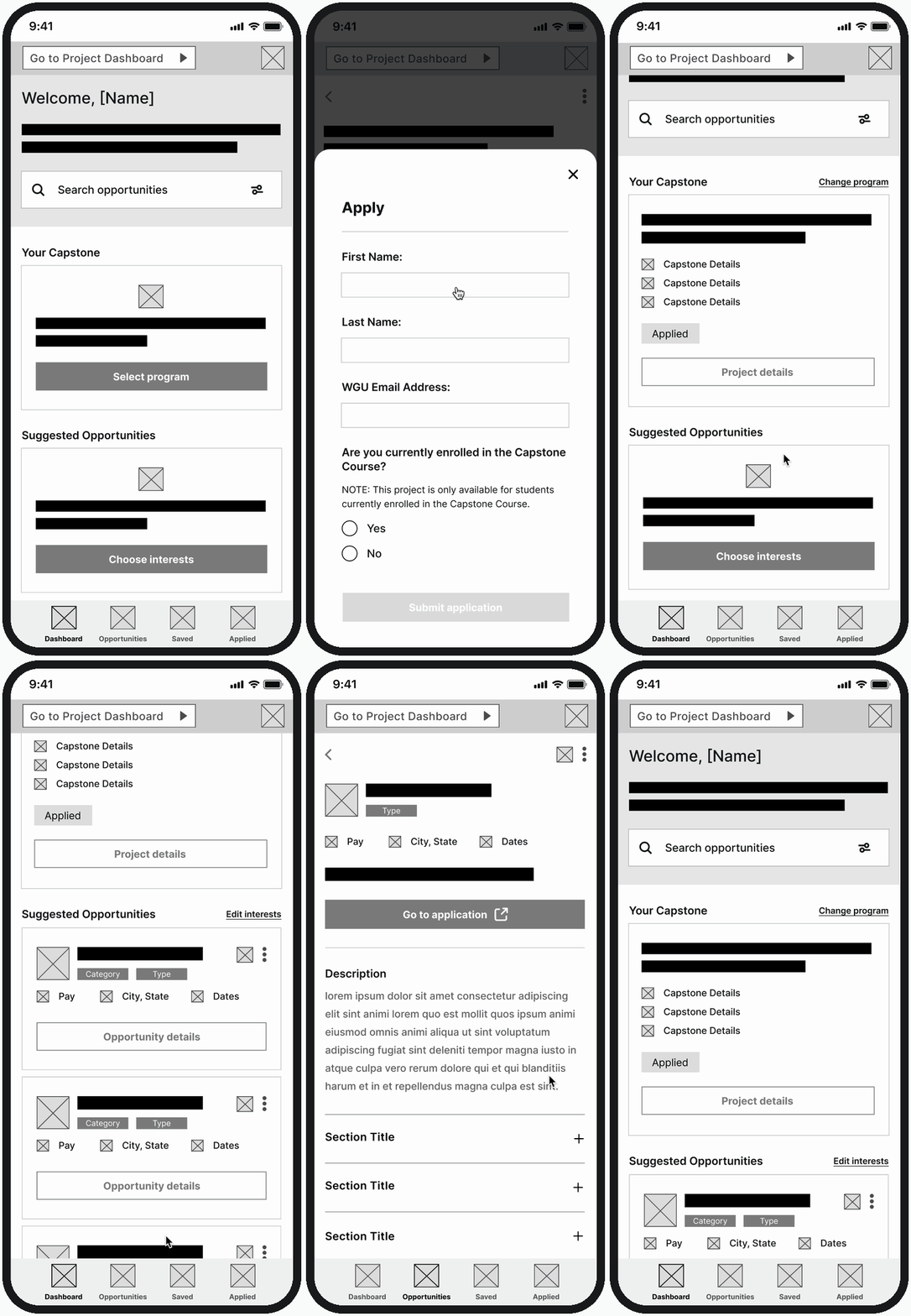
I linked the redesigned screens in Figma so the dashboard, interests, search and filters, capstone details, and applying work as one connected experience.
What I learned.
The project required feedback from three students. I reached five, but I would have liked to interview a few more. My survey asked which devices students used rather than having them complete tasks on a phone. Next time, I would ask them to complete key tasks on mobile to ensure all feedback was specific to the task.